Learn how WooCommerce’s new Checkout Blocks handle fields differently and how to clean them up safely to reduce checkout friction and improve user experience.
By default, WooCommerce checkout block has options to hide three fields only.
- Company
- Address line 2
- Phone
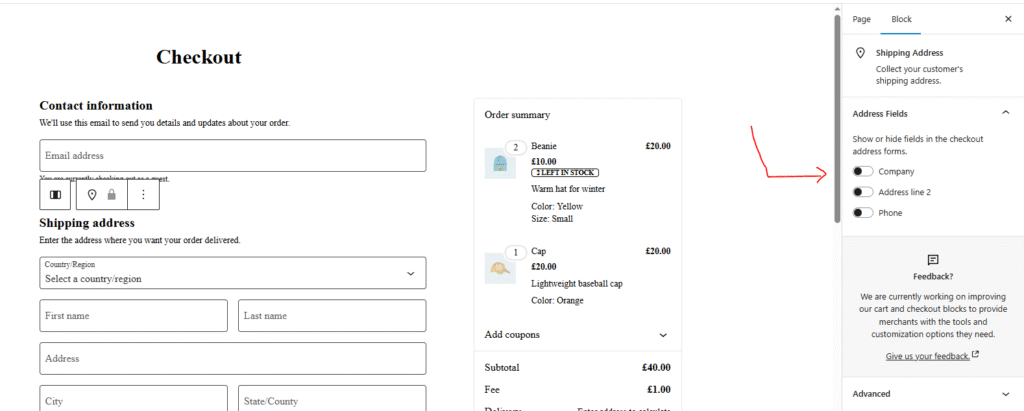
But then if we want a clean clutter-free checkout how can we hide other fields in WooCommerce checkouot block such as:
- First Name
- Last Name
- Address 1
- City
- State
- Postcode
There is no any built-in solution to hide these checkoout fields in WooCommerce.
If we want to add a custom field like Full Name to Block checkout, that is also not possible as of now.
So how you can remove these other fields in WooCommerce block checkout and add custom fields?
Here’s the possible way to do it:
| Task | Classic Checkout | Block Checkout |
|---|---|---|
| Remove fields via PHP | ✅ Yes | ❌ No |
| Add custom fields via PHP | ✅ Yes | ⚠️ Partial (cannot in address area) |
| Remove via CSS | ✅ Yes | ⚠️ Only optional fields |
| Plugin solution | ✅ Yes (Clean Checkout 2.0) | ✅ Yes (Clean Checkout 2.0) |
If you are not familir with PHP coding you can stop reading right here and try the Clean Checkout For WooCommerce plugin right away.
WooCommerce’s Block Checkout (introduced in WooCommerce 10.4 and later) modernizes the entire checkout experience with a React-based system.
However, if you’ve tried to hide or remove fields (like address, postcode, or phone) in the new block checkout, you might have realized:
The old filters and PHP snippets no longer work.
This guide explains why that happens and shows two practical ways to remove or simplify shipping fields in the Block Checkout without breaking the new system.
🧱 Classic Checkout vs Block Checkout
In the Classic Checkout, you could easily use filters such as:
add_filter( 'woocommerce_checkout_fields', 'remove_shipping_fields' );
function remove_shipping_fields( $fields ) {
    unset( $fields['shipping']['shipping_company'] );
    unset( $fields['shipping']['shipping_address_2'] );
    return $fields;
}
That method still works perfectly in shortcode-based checkouts.
But in the Block Checkout, field rendering happens via React components and REST API schemas – meaning PHP filters can’t directly modify them anymore.
❌ Why You Can’t Just “Unset” Fields in Block Checkout
Block Checkout reads its field data from the Store API.
It expects a valid address object containing all required keys, especially:
countrypostcodestateaddress_1
If you try to remove those via PHP, the checkout will throw validation errors or fail to load the block.
Safe Way to Simplify Shipping Fields (for now 22/10/2025)
Use CSS to Hide Optional Fields
You can visually hide a field if it’s not critical to order data.
.wc-block-components-address-field--company,
.wc-block-components-address-field--address_2 {
    display: none !important;
}
✅ Important: Always test checkout after hiding anything visually.
The country and email fields must remain visible (they are required by the Store API – by default WooCommerce).
💡 A Plugin That Already Does This
If you don’t want to deal with CSS or code, you can use Clean Checkout for WooCommerce. It now supports both Classic and Block Checkout layouts.
With version 2.0, you can:
- Disable specific billing or shipping fields
- Add a single Full Name field
- Automatically detect whether you’re using Block or Classic Checkout
…and all of this without touching a single line of code.
How to remove any WooCommerce “Classic“ checkout field using Clean Checkout for WooCommerce?
It’s pretty stright forward. All you have to do is after installing the plugin, toggle fields you want remove in WooCommerce → Clean Checkout
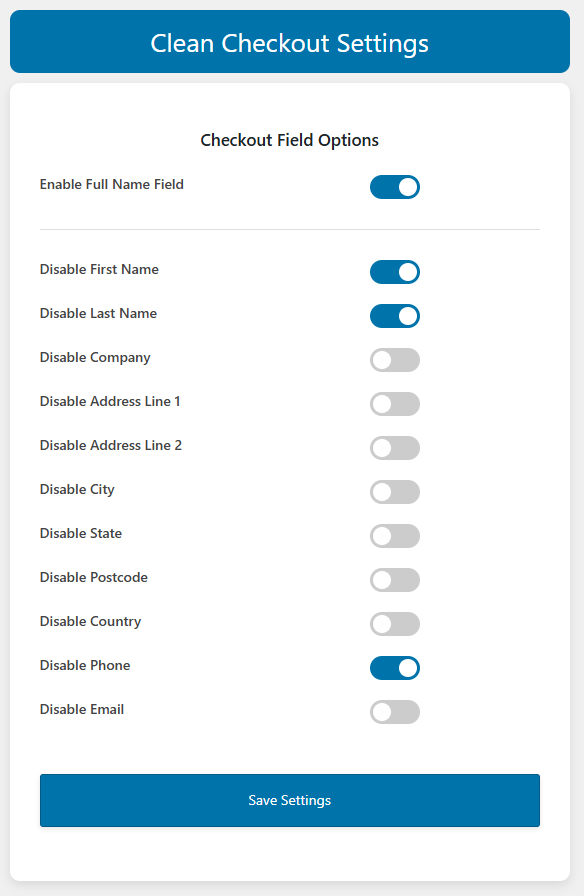
If you want to show “Full Name” field in your WooCommerce classic checkout page, simpley toggle that option as well. That’s all.
How to remove any WooCommerce “Block“ checkout field using Clean Checkout for WooCommerce?
It’s pretty stright forward. All you have to do is after installing the plugin, toggle fields you want remove in WooCommerce → Clean Checkout but if you want to dislay the Full Name field in the WooCommerce block checkout, you must have toggle Full Name field and should not toggle the First Name field. So the final setting should be like this:
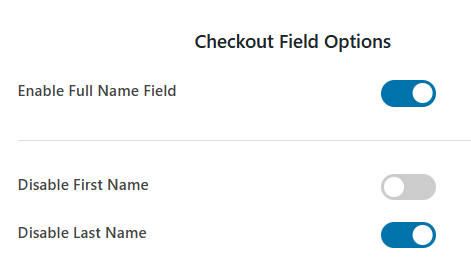
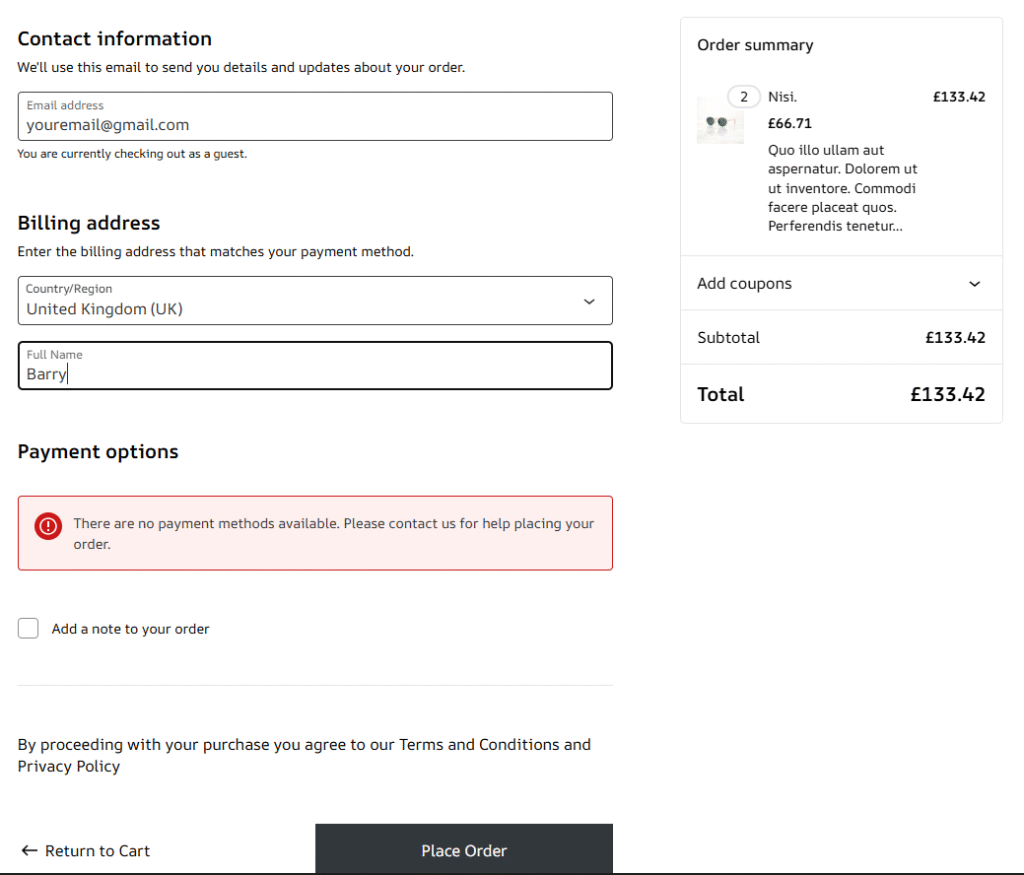
That’s all and then you will see the full name and minimal fields on your WooCommerc block chckout field like this:
🏁 Final Thoughts
Block Checkout is the future of WooCommerce and it’s still evolving.
If you rely on checkout customization, make sure your plugins are block-compatible.
With Clean Checkout for WooCommerce 2.0, you get the simplicity of the old checkout with the flexibility of the new one – no code, no hassle.